
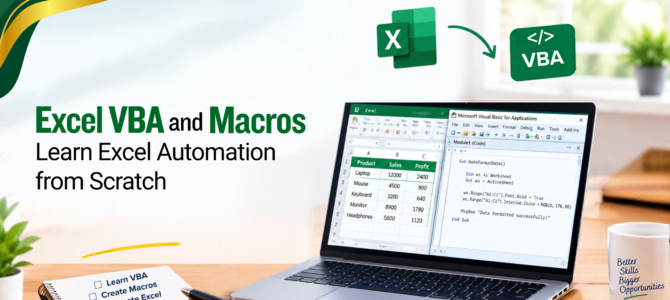
Many Excel tasks come back on a schedule: cleaning an export, applying the same formatting, copying totals into a summary sheet, and saving the file under a new name. Each step takes a minute or two, but the minutes add up over a week. Excel VBA and Excel macros exist for this situation. A task is recorded or described once, and Excel repeats it on demand. That is the basis of Excel automation.
This Excel VBA guide is written for someone who already uses formulas, tables and basic formatting but has never opened the VBA Editor. If you want structured practical training, you can also explore Excel VBA training. It explains what VBA and macros are, how they relate, where they are used, how to open the editor, how to record and write a first macro, how to save the file correctly, and what to check when something goes wrong.
Excel VBA and Macros are tools used to automate repetitive tasks in Microsoft Excel. VBA is the programming language used to control Excel, while a macro is a procedure that runs a set of actions. They can automate tasks such as data cleaning, formatting, reporting, PivotTable updates and file processing.
What Is VBA in Excel?
VBA in Excel stands for Visual Basic for Applications, the programming language built into Microsoft Office. In Excel, it is used to write instructions that control workbooks, worksheets, ranges and other parts of the program so that repetitive or multi-step work runs automatically from a single command.
Excel organises its contents as objects. A workbook contains worksheets, a worksheet contains ranges, and a range has properties such as its value, font and fill colour. VBA statements read or change those objects. The line Range(“A1"). Value = “Total" means take cell A1 and set its value to the word Total.
The language reads close to plain English, and no separate installation is needed. The editor and the language ship with desktop Excel, and the code is stored inside the workbook file itself. This is why VBA programming in Excel is a common starting point for people who have never written code before.
What Does VBA Actually Do in Excel?
VBA can repeat tasks, change data, build reports, format sheets, open and combine several files, refresh PivotTables and pass information to other Office programs such as Outlook, Word and PowerPoint. Each of these appears with an example in a later section.
What Is an Excel Macro?
An Excel macro is a saved set of instructions that Excel can run automatically from a button click or a keyboard shortcut. A macro may copy data, apply formatting, sort a table, or perform all three in order.
There are two ways to create one. The first is the Macro Recorder, which watches clicks and keystrokes and translates them into VBA code stored in a module. The second is writing the code by hand in the VBA Editor.
The recorder has limits. It normally captures the specific actions and cell references used during recording, so a macro recorded on cells A1 to D1 acts on A1 to D1 by default. The Use Relative References option, covered later in this guide, changes how those positions are applied. The recorder still cannot make decisions or loop through a list of unknown length, and it often records steps that were not needed. Editing the recorded code in VBA removes these limits.
VBA vs Excel Macro: What's the Difference?
Is VBA the Same as a Macro?
No, though the two are closely linked. Every macro in Excel is stored as VBA code, so the terms overlap in daily conversation. Strictly speaking, VBA is the language and a macro is a procedure written in it. VBA can also build custom worksheet functions and input forms, which fall outside the definition of a macro.
What Should You Learn Before VBA?
A programming background is not needed for basic Excel VBA. The following Excel skills make the first macros easier to understand:
- Formulas and functions: IF, SUMIF and lookup functions follow the same logic that VBA conditions use.
- Cell and range references: the difference between relative and absolute references carries over directly.
- Worksheets, workbooks and tables: VBA addresses each of these by name.
Basic data handling: sorting, filtering and cleaning data by hand shows which steps are worth automating. - Logical thinking: the ability to break a task into ordered steps and to state a condition clearly.
If you want to strengthen your Excel fundamentals before moving into VBA, explore Excel training in Singapore for different skill levels.
What Is VBA Used for in Excel?
The answer to what VBA is used for depends on the job at hand. The most common uses are listed below, each with a small example.
Automating Repetitive Tasks
A weekly sales export arrives with unwanted columns and dates stored as text. One macro deletes the extra columns, converts the dates, applies the standard number format and saves the file with the current date in its name.
Creating Monthly Reports
VBA can automate recurring reporting steps such as importing data, refreshing PivotTables, updating calculations, formatting the report and exporting the final file. The exact workflow depends on how the source data and report are structured.
Cleaning and Processing Data
An inventory list contains blank rows, duplicate product codes and extra spaces around text. A macro can delete the blank rows, remove the duplicates and trim the spaces in one pass, in the same order every time.
Working With Multiple Excel Files
A folder holds twelve monthly workbooks with the same layout. A macro opens each file in turn, copies its table and pastes it under the previous one in a master workbook.
Automating PivotTables and Charts
After new rows are added to a data table, a macro refreshes every PivotTable in the workbook, and the charts linked to them update with the new figures.
Formatting Worksheets
A company standard may require a bold header row, dark blue fill, white text, automatic column widths and a frozen top row. One macro applies the whole standard to any new sheet.
Creating Custom Excel Workflows
A button labelled Add New Order can open an input form, write the entries into the next empty row and clear the form for the next entry. This uses a VBA user form, a feature that recorded macros cannot produce.
Sending Automated Emails
Once a report is ready, a macro can create an Outlook message addressed to the team and attach the PDF. This needs the desktop version of Outlook installed on the same computer.
What Can You Automate With VBA?
The table below adds the VBA element behind each task, which gives a first look at the vocabulary used in VBA automation examples.
As a guide, work that is done with the mouse and keyboard inside Excel can usually be described in VBA. Work that reaches outside the office, such as reading from a website, needs extra techniques.
How to Open VBA in Excel
Step 1: Open Excel.
Start the desktop Excel and open any workbook. A blank one is enough for practice. The VBA Editor is available in Excel for Windows and Mac, and it is not part of Excel for the web.
Step 2: Enable the Developer Tab
The Excel Developer tab is hidden by default. To show it on Windows:
Select File, then Options.
Open Customise Ribbon.
Under Main Tabs on the right, tick Developer.
Select OK.
On Mac, the setting is under Excel, then Preferences, then Ribbon & Toolbar.
Step 3: Open Visual Basic
Select Developer, then Visual Basic. On Windows, the shortcut Alt + F11 opens the same window and works even when the Developer tab is hidden.
Step 4: Understand the VBA Editor
The VBA Editor opens in a separate window with several panes:
Project Explorer (Ctrl + R): a tree of every open workbook, with its sheets and modules.
Properties Window (F4): the settings of whichever item is selected in the Project Explorer.
Code Window: the area where macros are typed and read. Double-clicking a module in the Project Explorer opens it here.
Immediate Window (Ctrl + G): a scratch area for testing a single line of code or printing a value.
Modules: containers that hold macro code. A new one is added through Insert, then Module.
How to Record Your First Excel Macro
Recording is the quickest bridge between using Excel by hand and reading VBA. This example records a header format.
Enable the Developer tab as described above.
Select Record Macro. A dialogue box opens.
Enter a name such as FormatHeader. Macro names must start with a letter and cannot contain spaces. A shortcut key is optional, and a combination with Ctrl + Shift avoids overriding the built-in Ctrl shortcuts. Set the Store macro in option to This Workbook.
Select OK, then select cells A1 to D1, apply bold and choose a fill colour.
Select Stop Recording on the Developer tab.
Press Alt + F11 to open the VBA Editor.
Double-click Module1 under Modules in the Project Explorer to view the generated code.
The recorded code looks similar to this, though the exact lines vary by Excel version:
vba
Sub FormatHeader()
Range(“A1:D1").Select
Selection. Font. Bold = True
With Selection.Interior
.Color = 65535
End With
End Sub
The Use Relative References button, next to Record Macro, changes how the recorder treats cell positions. When it is on, the macro acts relative to the selected cell instead of the fixed addresses used while recording.
How to Edit the Recorded VBA Code
How to edit VBA code is easier than it looks, because the code window works like a text editor. Click into the line, change the text and run the macro again. In the example above, changing Range(“A1:D1") to Range(“A1:H1") extends the format to eight columns. Replacing 65535 with RGB(0, 51, 102) changes the fill to dark blue. Small edits like these are the fastest way to learn what each part of the code controls.
How to Write Your First VBA Code in Excel
Open the VBA Editor, choose Insert, then Module, and type the following. This is the simplest piece of beginner VBA code and a good first step in Excel VBA for beginners.
vba
Sub HelloExcel()
MsgBox “Hello from Excel VBA!"
End Sub
Each part has a purpose:
- Sub marks the start of a subroutine, which is the technical name for a macro.
- HelloExcel is the macro name. The empty parentheses after it are added automatically and hold inputs that this macro does not need.
- MsgBox opens a small message window with the text that follows it.
- End Sub marks the end of the macro.
Indentation is optional, but it makes the code easier to read.
The next example writes to the worksheet:
vba
Sub EnterValue()
Range(“A1"). Value = “Hello Excel"
End Sub
Range(“A1") points to cell A1 on the active sheet. Value is the property that holds what the cell contains, and the equals sign assigns the new text to it. When the macro runs, A1 shows Hello Excel. Any earlier content in that cell is overwritten.
How to Run VBA Code in Excel
There are four common ways to learn how to run a VBA macro:
- Run button: click anywhere inside the macro in the VBA Editor, then select the Run Sub button on the toolbar or press F5. If the cursor sits outside every macro, F5 opens a list to pick from.
- Macro dialogue: press Alt + F8, select the macro name and choose Run.
- Button on the sheet: select Developer, then Insert, then Button under Form Controls. Draw the button on the sheet, and the Assign Macro dialogue opens. Pick the macro and select OK. Clicking the button then runs it.
Shortcut key: set one in the Macro dialogue under Options.
How to Save an Excel File With VBA
A standard .xlsx workbook cannot store macros. Saving a workbook that contains code as .xlsx triggers a warning that the features cannot be saved in a macro-free workbook. Choosing 'Yes' saves the file without the code.
To keep the macros, select File, then Save As, and pick Excel Macro-Enabled Workbook (.xlsm). Two related formats also carry macros: the binary workbook (.xlsb) and the macro-enabled template (.xltm).
If a workbook is saved as .xlsx, closed and reopened, the code inside that file is gone and cannot be recovered from it. A backup copy or a fresh rewrite is the only way back.
Common Excel VBA Examples for Beginners
These VBA Macro examples and Excel macro examples each show one small action. Each can be pasted into a module and run.
Add a Value to a Cell
The earlier example used Range. The Cells property takes a row number and a column number, which suits loops later on. This example also writes a formula.
vba
Sub AddValues()
Cells(2, 1).Value = “Total Sales"
Cells(2, 2).Value = 12500
Cells(3, 1).Value = “Monthly Average"
Cells(3, 2).Formula = “=B2/12"
End Sub
Change Cell Formatting
vba
Sub FormatCells()
With Range(“A1:D1")
.Font.Bold = True
.Interior.Color = RGB(0, 51, 102)
.Font.Color = RGB(255, 255, 255)
End With
Columns(“A:D").AutoFit
End Sub
The With block applies several settings to the same range without repeating its address. This macro also avoids Select, which the tips section explains.
Create a New Worksheet.
vba
Sub AddSheet()
Dim ws As Worksheet
Set ws = Worksheets.Add(After:=Worksheets(Worksheets.Count))
ws.Name = “Summary"
End Sub
The new sheet is added at the end and named Summary. Running the macro a second time causes an error, because two sheets cannot share a name.
Find the Last Row
vba
Sub ShowLastRow()
Dim lastRow As Long
lastRow = Cells(Rows.Count, “A").End(xlUp).Row
MsgBox “Last used row in column A: " & lastRow
End Sub
The code starts at the bottom of column A and moves up to the first filled cell, the same movement as pressing Ctrl + Up Arrow. Most macros that handle lists of changing length begin with this step.
Loop Through Rows
vba
Sub HighlightLowStock()
Dim lastRow As Long
Dim i As Long
lastRow = Cells(Rows.Count, “A").End(xlUp).Row
For i = 2 To lastRow
If Cells(i, 3).Value < 10 Then
Cells(i, 3).Interior.Color = RGB(255, 199, 206)
End If
Next i
End Sub
This assumes headers in row 1 and stock quantities in column C. The loop checks each row from 2 to the last row and colours any quantity below 10.
Display a Message
The first example only announced something. This one asks a question and acts on the answer.
vba
Sub ConfirmAction()
Dim answer As VbMsgBoxResult
answer = MsgBox(“Clear the contents of column D?", vbYesNo + vbQuestion, “Confirm")
If answer = vbYes Then
Columns(“D").ClearContents
End If
End Sub
Common Problems Beginners Face With VBA
Macro Is Not Running
The usual causes are disabled macros and a file saved as .xlsx, a button assigned to a macro that was renamed, or a workbook opened in Protected View. Select Enable Content on the yellow bar, and check the file extension. Pressing Alt + F8 shows whether the macro is listed at all.
Developer Tab Is Missing
The tab is hidden until it is switched on under File, Options, Customize Ribbon. On a work computer, the organisation's settings may restrict this option, and the IT team can confirm.
VBA Code Gives an Error
A run-time error window offers a Debug button. Selecting it highlights in yellow the line where Excel stopped. Three messages are common:
Subscript out of range: a sheet or workbook name was typed incorrectly.
Type mismatch: text was supplied where a number was expected.
Run-time error 1004: an action failed, such as naming a sheet with a name already in use.
Stepping through with F8 and hovering over variables shows the values at the point of failure. The Reset button on the toolbar stops the code afterwards.
Macro Disappeared After Saving
This almost always means the workbook was saved as .xlsx. If the file is still open, use Save As and choose .xlsm straight away. If it was closed and reopened, the code in that file is gone, so restore an earlier copy or rewrite the macro.
Excel Blocks Macros
Microsoft 365 blocks macros in files that came from the internet or from an email attachment, and a red or yellow security bar says so. For a file from a trusted source, close it, right-click it in File Explorer, open Properties, tick Unblock and reopen it. A file placed in a Trusted Location also opens with macros enabled. The default setting under File, Options, and Trust Center is to disable macros with a notification.
Code Works in One Workbook but Not Another
Common causes are hard-coded sheet names, code that assumes a certain sheet is active, a macro stored in a different file or in the Personal Macro Workbook, and a data layout that differs between files. Naming the workbook and sheet in full fixes many of these cases:
vba
ThisWorkbook.Worksheets(“Data"). Range(“A1"). Value = “Total"
Checking Tools, then References in the VBA Editor also helps, because a library marked MISSING can stop code from running.
Is VBA Still Useful for Excel Automation?
Yes, VBA is still useful for Excel automation, especially in desktop Excel. It can automate formatting, buttons, forms, events, and tasks involving Excel, Outlook, and Word. However, VBA does not run in Excel for the web, and macro-enabled files require careful security handling. Power Query is better for data cleaning, Power Automate for connecting apps, and Office Scripts for Excel on the web. The right tool depends on the task, and many workflows combine these tools. For a detailed comparison, see Excel VBA vs Power Query.
Frequently Asked Questions About Excel VBA and Macros
Is VBA difficult to learn?
VBA is easy to begin with and becomes more detailed with practice. Recording a macro and editing the generated code is a gentle first step, and a small set of statements is enough to build useful macros. Topics such as loops, error handling and multi-file automation come later, and they become comfortable with regular practice on tasks from daily work.
How long does it take to learn Excel VBA?
Most learners create a first working macro within a few hours. With steady weekly practice, many can automate routine tasks such as data cleaning and formatting within a few weeks. Areas such as user forms and multi-file automation take longer and are best learned one project at a time. Each small task automated is a step forward in VBA for beginners.
How do I stop a macro that is running?
A running macro can be stopped by pressing Esc or Ctrl + Break. Excel then shows a dialog, where End stops the macro immediately, and Debug highlights the line where it paused. If Excel does not respond, the Reset button on the VBA Editor toolbar stops the code. Saving the workbook before testing a new macro is a helpful habit.
How do I make a macro available in every workbook?
Storing the macro in the Personal Macro Workbook makes it available in every workbook on that computer. This hidden file, named PERSONAL.XLSB, opens each time Excel starts, and it is created by choosing Personal Macro Workbook in the Store macro in list of the Record Macro dialogue. The macro then appears in the Alt + F8 list. Colleagues do not receive it, so macros that others need are best kept inside the shared file.
How do I copy a macro from one workbook to another?
With both workbooks open, a macro can be copied by dragging its module in the Project Explorer onto the other workbook, by pasting the code into a new module, or by exporting the module as a .bas file and importing it. The sheet names and ranges used in the code should exist in the new workbook, and the target file should be saved as .xlsm to keep the macro.
What is the difference between a Sub and a Function in VBA?
A Sub performs actions and is run from a button, a shortcut or the Macro dialog, while a Function returns a value and can be used inside a cell like a built-in formula. For example, a Function named AddSurcharge can be entered as =AddSurcharge(B2) to return the value in B2 increased by a set percentage. Functions do not appear in the Macro dialogue, because they are called from cells or from other code.
What is a variable in VBA?
A variable is a named container that holds a value, such as text, a number or a date, while a macro runs. It is created with the Dim statement, as in Dim orderCount As Long, and given a value with an equals sign. Common types include String for text, Long for whole numbers, Double for decimals and Date for dates. Clear names such as orderCount keep the code easy to read later.
Can a macro run automatically when a workbook opens?
Yes, the Workbook_Open event runs a procedure each time a workbook opens. It is added by double-clicking ThisWorkbook in the Project Explorer, then choosing Workbook and Open from the two dropdowns at the top of the Code Window. The file needs to be saved as .xlsm with macros enabled. Similar events respond to sheet changes and workbook closing, which supports Excel macro automation without a button.
Can AI tools write VBA code for Excel?
Yes, chat-based AI tools can draft Excel VBA code from a plain description, and they can also explain unfamiliar lines. The result improves when the request names the sheet, the column letters, the header row and the expected outcome. Testing every draft on a copy of the workbook is a sensible step, and basic knowledge of VBA programming in Excel helps in reading the code and confirming that it does what was asked.
Does Google Sheets support VBA?
Google Sheets does not run VBA, and its automation language is Google Apps Script, which is based on JavaScript. An .xlsm file opened in Google Sheets keeps its data and formatting but not the VBA code, so the macro needs to be rewritten in Apps Script to work there. Keeping macro-based steps in the Excel version of the workbook is the simplest arrangement.
 +65 8421 2824
 info@exceltraining.com.sg


 Chat With Us