
A company keeps sales data in one Excel file and customer details in another. Every month someone copies the numbers into a report, fixes the formatting and sends it to management. As the data grows, the report takes longer to build, and one wrong paste can change a total without anyone noticing.
Microsoft Power BI is a tool made for this kind of problem. It connects to data, cleans it, organises it into a model, analyses it and presents the results in reports and dashboards. This Power BI for beginners guide explains what it is, what it is used for, how it works, how it relates to Excel and what to learn first.
What Is Microsoft Power BI?
Microsoft Power BI is Microsoft’s business intelligence and data visualisation platform. It connects to different data sources, lets you clean and reshape data, organises it into related tables, and helps you build interactive reports.
Three parts are worth knowing at the start. Data can come from files, databases and other supported sources. Cleaning and shaping happen in a built-in editor. The finished results appear as visuals such as charts, cards and tables that readers can filter and explore. If you want to learn these fundamentals through structured practice, you can explore this Microsoft Power BI course.
What Is Power BI Used For?
Power BI is used to turn data into reports people can read and question. Common uses include:
- Analysing business data across sources
- Creating reports for teams and managers, which is the core of Power BI reporting
- Building Power BI dashboards that show key figures on one page
- Tracking KPIs such as revenue, orders and profit
- Comparing performance across periods, regions or products
- Finding trends that are hard to see in long tables
- Combining data from files or systems that do not talk to each other
How Does Power BI Work?
The workflow has six stages: connect, transform, model, analyse, visualise and report. Each stage feeds the next, and most reports follow this order.
Connect to Data
The first step is telling Power BI where the data lives. Sources include Excel workbooks, CSV files, databases and other supported services. For a beginner, an Excel file is usually the easiest place to start.
Transform Data
Raw data is rarely ready to use. This is where Power Query comes in, the same data preparation tool found in Excel. Typical tasks are removing columns you do not need, changing data types, removing duplicates and fixing inconsistent values such as “Singapore", “singapore" and “SG" in the same column. Power BI records each step, so the same cleaning runs again when the data is refreshed.
Model Data
A data model is a set of tables and the relationships between them. Setting it up correctly lets Power BI answer questions that span several tables. The data modelling section below explains this with an example.
Analyse Data
Analysis happens through calculations called measures, written in a language named DAX. A measure can total sales, count orders or compare this month with last month. DAX has its own section further down.
Visualise Data
Power BI data visualisation covers charts, cards, tables, slicers and filters. Charts show trends and comparisons, cards show single figures, tables list detail, and slicers and filters let readers narrow the view to a region, product or date range.
What Is Power BI Desktop?
Power BI Desktop is the application used to build reports. It is a Windows application where you import data, prepare it, define the model, write calculations and design report pages.
The broader Power BI platform also includes an online service used to publish and share reports, and access to that depends on licensing and organisation settings. Beginners can learn most of the fundamentals inside Desktop alone, because that is where the building work happens.
Inside Desktop, you will find the Power Query editor for preparing data, a model view for relationships, and a report canvas where you add visuals and create calculations.
What Can You Do With Power BI?
Analyse Sales Data
A sales report can show monthly revenue, sales by product, sales by region and the top-performing products. Once the data is connected, changing the date range or region does not require rebuilding anything.
Create Management Reports
Managers rarely want to read a long table. A report can put the main figures on one page and let readers filter for details, which is easier to review than a spreadsheet with dozens of columns.
Track KPIs.
Revenue, orders, profit and customer count are typical KPIs. A report can show each one as a card, with a trend chart beside it.
Compare Performance
Reports often compare the current month with the previous month, actual results with targets, or one region with another. These comparisons use measures, which is where DAX becomes useful.
What Is a Power BI Dashboard?
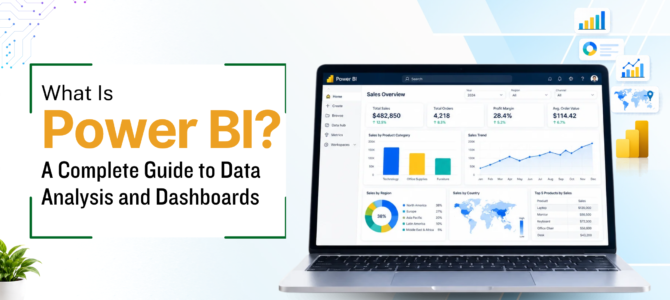
A Power BI dashboard is a single view that shows the key figures and charts for a set of business questions. Readers can usually filter it with slicers, such as a date range or region, and see the visuals update.
A sales dashboard might include:
- Total sales
- Total orders
- A monthly sales trend
- Sales by region
- Sales by product
- A date filter
The design should start from the questions the reader needs answered. A dashboard with fifteen charts and no clear purpose is harder to use than a simple one with five. A dashboard does not replace a spreadsheet. It serves a different purpose, which is presenting and exploring results.
How Does Power BI Help With Data Analysis?
Power BI data analysis follows a path from raw data to a readable answer. Take a company with a year of sales data spread across several files.
First, the files are combined into one dataset. Then the data is cleaned so that dates, product names and amounts are consistent. Next, measures calculate total sales, monthly growth and sales per region. Visuals show the trend over time and how regions compare, and slicers let a reader focus on one product or quarter.
Trends become visible in a line chart that a table would hide. Comparisons become quick, because changing a filter changes every visual at once. Reports become repeatable because refreshing the data reruns the same cleaning and calculations. The analysis is still only as reliable as the data and the calculations behind it, so figures should be checked against a source before a report goes to others.
What Is Data Modelling in Power BI?
Power BI data modelling means organising tables and defining how they relate so Power BI can analyse the data correctly.
Consider three tables:
- Sales: Date, Product ID, Customer ID, Sales Amount
- Product: Product ID, Product Name, Category
- Customer: Customer ID, Customer Name, Region
The Sales table records each transaction but holds only IDs. A relationship between Product ID in Sales and the product ID in the Product table tells Power BI that each sale belongs to one product. A second relationship does the same for customers.
Once the relationships exist, a chart can show sales by product category or by customer region, even though that information sits in different tables. Without them, the numbers would not connect, and the totals could be wrong. A clean data model also keeps the report easy to change later.
What Is DAX in Power BI?
Power BI DAX measures are written in DAX, which stands for Data Analysis Expressions. It is the formula language used for calculations in Power BI. It creates measures, which calculate results when a report is viewed, and calculated columns, which add a new column to a table.
A simple example:
text
Total Sales = SUM(Sales[Sales Amount])
In plain English, this creates a measure named 'Total Sales' that adds up every value in the 'Sales Amount' column of the 'Sales' table. Put it in a card, and it shows the overall total. Put it in a chart by region, and it shows the total for each region, because the measure recalculates for whatever filter is applied.
DAX goes much further, with time comparisons, conditional logic and more. Beginners can start with basic measures like this one and build up.
Can Power BI Connect to Excel?
Yes. Power BI with Excel is a common starting point, since Excel is one of the most frequently used data sources, and importing a workbook is often the first thing a beginner does.
The typical path is an Excel file, followed by Power Query for cleaning, the data model, and then visuals. Power BI can read Excel tables and ranges, and it works best when the data is organised as a clear table with one header row. The report can then be refreshed when the workbook changes.
Is Power BI useful for Excel users? Yes, when reports need to combine several files, refresh regularly or let readers filter the results themselves. Excel and Power BI can be used together, but they serve different purposes. For a fuller look at where each tool fits in an analysis workflow, read this guide to Power BI vs Excel for data analysis.
For readers who want to strengthen their spreadsheet skills before moving to data analysis, Microsoft Excel training in Singapore can help them build a foundation in working with tables, formulas and business data.
Power BI vs Excel: How Are They Different?
| Excel | Power BI |
| Spreadsheet-based work | Data analysis and reporting platform |
| Formulas and worksheet calculations | Data models, measures and visualizations |
| Useful for individual analysis | Useful for interactive reporting |
| Strong for direct cell-level work | Strong for visual data exploration |
Neither one makes the other unnecessary. Many people prepare and check data in Excel, then build the report in Power BI
Is Power BI Easy to Learn?
It can be, if you learn it in stages. Building a simple report is usually within reach for someone who understands basic data concepts. Some parts take longer.
- Excel experience helps, especially with tables, data types and formulas.
- Power Query needs some practice before the steps feel natural.
- Data modelling is an important concept that takes time to understand.
- DAX usually takes the longest to become comfortable with.
Simple reports can be built before moving to advanced features, and there is no need to learn everything at once. How long it takes depends on your background and how often you practise.
What Should Beginners Learn First in Power BI?
A workable order looks like this:
- Power BI Desktop. Get to know the interface and the basic workflow.
- Data import. Connect Excel files and other sources.
- Power Query. Learn basic cleaning and transformation.
- Data modelling. Understand tables and relationships.
- Visualizations. Learn how to choose and set up useful visuals.
- Filters and slicers. See how readers interact with a report.
- DAX. Start with basic measures and calculations.
- Dashboard and report design. Learn to present the analysis clearly.
Do You Need Excel Knowledge to Learn Power BI?
Not strictly, but it helps. Power BI is a separate tool, and people do learn it without Excel experience. Understanding tables, data types, formulas and basic analysis makes the early steps easier, and people coming from Excel often find some concepts familiar. Power Query, for example, appears in both.
Power BI Skills Used in Work
Teams tend to look for a set of skills rather than knowledge of software menus:
- Data preparation and transformation
- Data modelling
- DAX calculations
- Data visualization
- Dashboard creation and report development
- Data interpretation, meaning knowing what the numbers say and what they do not
These are the skills that structured Power BI training usually focuses on, and they can be built through self-study or guided practice. Interpretation is easy to overlook, but a polished report built on a misread number is still wrong.
What Can You Build With Power BI?
- A sales dashboard showing revenue, orders, products and regions
- A financial report comparing revenue, expenses and budget
- An HR dashboard covering headcount, departments and workforce trends
- An operations report tracking performance metrics, targets and monthly trends
Each of these starts the same way: a clear question, a clean dataset and a model that links the tables.
What to Know Before Starting With Power BI
- Your data should be reasonably organised, with clear headers and consistent values.
- Basic Excel and data concepts make the first steps easier.
- Decide what question the report needs to answer before building anything.
- Understand the data before creating visuals.
- Check calculations against the source before relying on a report.
- Start with a small dataset before moving to complex models.
Learn Microsoft Power BI
Learning Power BI involves more than creating charts. A full workflow includes connecting data, cleaning it with Power Query, creating relationships, writing calculations with DAX, applying filters and building reports.
Final Takeaway
Power BI is used to connect, prepare, model, analyse and visualise data. Excel can be one of its data sources, and the two tools can work together depending on the task. Power Query and DAX handle data preparation and calculations, and beginners can start with basic connections and visuals before moving on to modelling and DAX.
 +65 8421 2824
 info@exceltraining.com.sg


 Chat With Us