
Learning Excel shortcuts is one of the easiest ways to work more efficiently in Microsoft Excel. Whether you're entering data, formatting reports, or navigating large worksheets, the right keyboard shortcuts can significantly reduce repetitive actions and improve everyday spreadsheet productivity.
Most people use Excel every day, yet still reach for the mouse for tasks a single keystroke could handle. Selecting a range, opening a formatting dialog, switching between two open files each cost only a few seconds, but those seconds repeat constantly across a normal workday. Stretched across weeks and months, small improvements to Excel workflow start to add up into real time saved.
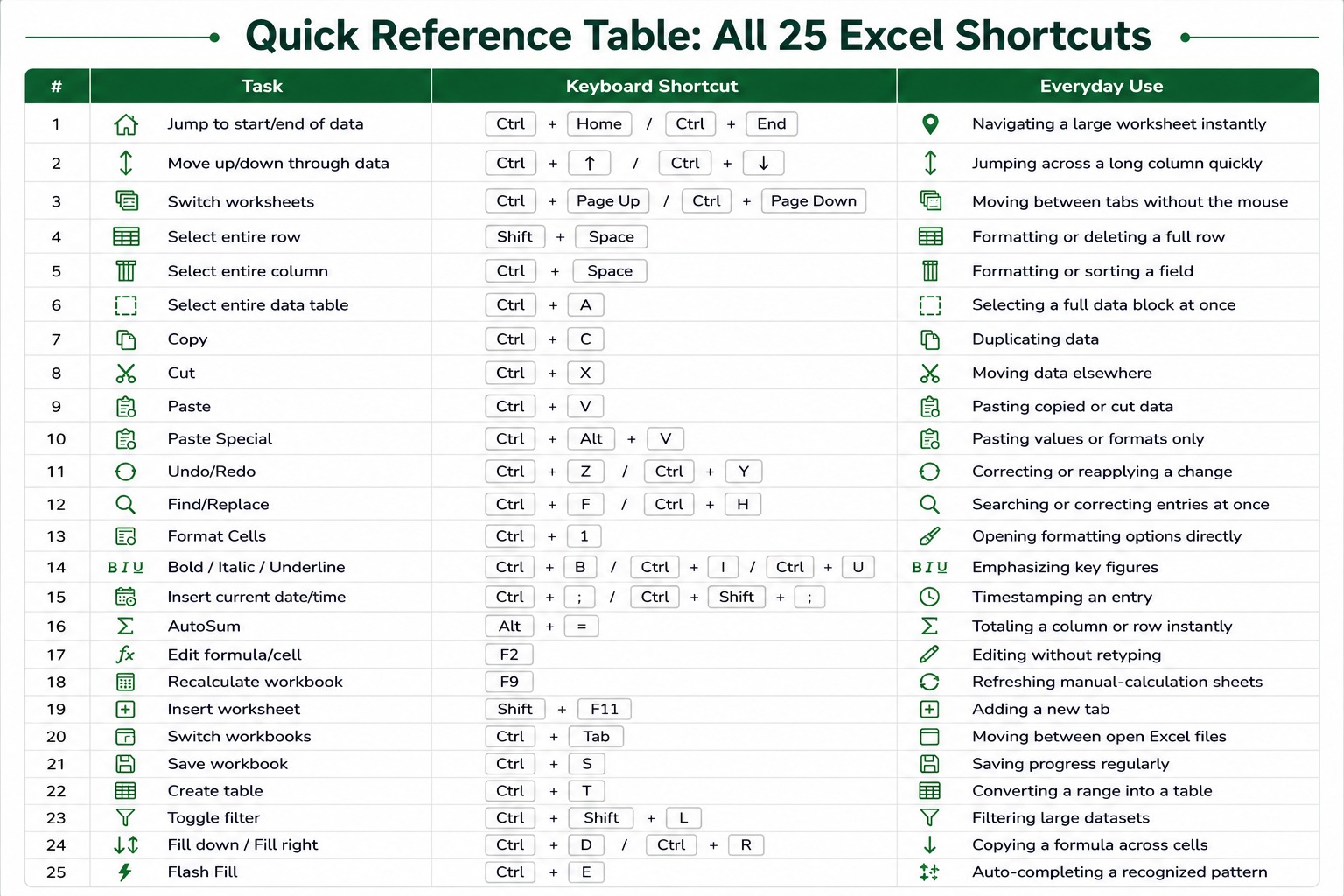
Whether you're after the most used Excel shortcuts, beginner Excel shortcuts, or the ones that come up in daily office work on Windows and Mac alike, this guide sticks to 25 Excel Shortcuts Every User Should Know, covering the tasks that show up in nearly every Excel session.
If you're still getting comfortable with spreadsheets in general, it's worth getting the fundamentals down first. Excel Basics for Beginners covers that ground, and these Microsoft Excel shortcuts will make a lot more sense once the underlying actions are already familiar.
What Are the Benefits of Using Spreadsheet Shortcuts?
Before getting into the shortcuts themselves, it helps to see what actually changes once they become part of daily work.
- Faster task completion. Actions that take several clicks through the Ribbon or right-click menu happen in a single keystroke, and that gap widens the more a task repeats.
- Less strain on the hands and wrist. Constant switching between keyboard and mouse adds up over a full workday. Keeping both hands on the keyboard for repetitive actions reduces that back-and-forth movement.
- Fewer interruptions to focus. Reaching for the mouse breaks concentration, even briefly. A shortcut keeps attention on the data itself instead of on navigating the screen.
- More consistent results. A shortcut performs the same action the same way every time, which matters when the same formatting or cleanup step needs to happen across many worksheets.
- Better handling of large datasets. Shortcuts for navigation, selection, and filling data scale far better than manual scrolling and dragging once a worksheet runs into thousands of rows.
- Improved overall Excel efficiency. None of these gains look large in isolation, but combined across a full workday, they noticeably change how much gets done in the same amount of time.
Excel Navigation Shortcuts for Large Worksheets
- 1. Jump to the Beginning or End of Your Data
Large worksheets mean constant scrolling, especially once a report runs into thousands of rows.
Shortcut Keys: Ctrl + Home jumps to cell A1. Ctrl + End jumps to the last cell containing data. Typing a cell reference directly into the Name Box, in the top-left corner next to the Formula Bar, works too, but these two shortcuts get you there without touching anything but the keyboard. - 2. Move Up or Down Through Large Data Ranges
Shortcut Keys: Ctrl + ↑ / Ctrl + ↓
Instead of scrolling row by row, this jumps to the next point where the data changes, either the last filled cell before a gap or the next filled cell after one. It's one of the most useful Excel keyboard shortcuts for moving through a long column without losing track of position. - 3. Switch Between Worksheets Without Using Your Mouse
Shortcut Keys: Ctrl + Page Up / Ctrl + Page Down
Useful the moment a workbook has more than two or three worksheet tabs, moving between sheets without ever touching the tabs at the bottom of the screen.
Excel Selection Shortcuts for Faster Data Handling
- 4. Select an Entire Row Instantly
Shortcut Key: Shift + Space
Selects the full row containing the active cell, handy before deleting a row or applying formatting across it. - 5. Select an Entire Column
Shortcut Key: Ctrl + Space
Selects the full column containing the active cell, useful before sorting or formatting a specific field. - 6. Select an Entire Data Table
Shortcut Key: Ctrl + A
Pressed once inside a range of data, this selects the current block. Pressed again, it extends the selection to the entire worksheet. Especially useful when preparing to copy or format an entire table in one step, without dragging a selection box across the screen.
Excel Selection Shortcuts for Faster Data Handling
- 4. Select an Entire Row Instantly
Shortcut Key: Shift + Space
Selects the full row containing the active cell, handy before deleting a row or applying formatting across it. - 5. Select an Entire Column
Shortcut Key: Ctrl + Space
Selects the full column containing the active cell, useful before sorting or formatting a specific field. - 6. Select an Entire Data Table
Shortcut Key: Ctrl + A
Pressed once inside a range of data, this selects the current block. Pressed again, it extends the selection to the entire worksheet. Especially useful when preparing to copy or format an entire table in one step, without dragging a selection box across the screen.
Everyday Excel Editing Shortcuts
- 7. Copy Information Faster
Shortcut Key: Ctrl + C
Copies whatever is selected, ready to paste anywhere in the same worksheet, a different sheet, or even another program. - 8. Cut and Move Data
Shortcut Key: Ctrl + X
Cuts the selection so it can be moved elsewhere, without leaving the original data behind once pasted. - 9. Paste Information the Right Way
Shortcut Keys: Ctrl + V / Paste Special
Ctrl + V pastes exactly what was copied, formulas, formatting, everything. Paste Special (Ctrl + Alt + V) opens a dialog to paste only what's needed, values only, formatting only, or formulas without the source formatting overwriting the destination. This matters most when copying from a heavily formatted sheet into one that already has its own formatting in place. - 10. Undo and Redo Changes
Shortcut Keys: Ctrl + Z / Ctrl + Y
Ctrl + Z reverses the last action and can be pressed repeatedly to step back further. Ctrl + Y reapplies whatever was just undone. - 11. Find Information Quickly
Shortcut Keys: Ctrl + F / Ctrl + H
Ctrl + F searches for specific text or values anywhere in the worksheet. Ctrl + H opens Find and Replace, useful when the same correction needs to happen across many cells at once.
Excel Formatting Shortcuts for Better Readability
- 12. Open the Format Cells Window
Shortcut: Ctrl + 1
Opens the Format Cells dialog directly, skipping the Ribbon entirely for number formats, borders, alignment, or fill color changes. - 13. Apply Bold, Italic, and Underline Quickly
Shortcut Keys: Ctrl + B / Ctrl + I / Ctrl + U
Each toggles its respective formatting on the selected cells, useful for emphasising headers, totals, or flagged figures without opening a menu. - 14. Enter Today's Date or Current Time
Shortcut Keys: Ctrl + ; / Ctrl + Shift + ;
Inserts the current date or current time as a static value, useful for timestamping a report or log entry without typing it manually. - 15. Autofit Columns for Better Visibility
Column widths that don't match their content make a worksheet harder to read. Double-clicking the border between two column headers auto-fits that column to its widest entry. There isn't one dedicated keyboard shortcut for this across every Excel version, but selecting the columns first and using the Format menu's “AutoFit Column Width" option gets the same result without touching the mouse for every column individually.
Excel Formula and Calculation Shortcuts
- 16. Calculate Totals Instantly with AutoSum
Shortcut: Alt + =
Builds a SUM formula automatically, guessing the range above or beside the active cell. The Status Bar at the bottom of the screen already shows a quick sum of any selected range, but AutoSum turns that into an actual formula in the cell. - 17. Edit Formulas Without Starting Again
Shortcut: F2
Drops directly into editing the active cell or formula in place, instead of clicking into the Formula Bar or retyping the entry from scratch. - 18. Recalculate Your Workbook
Shortcut: F9
Forces every formula in the workbook to recalculate. Matters most on sheets set to manual calculation, or large workbooks where formulas don't always refresh automatically.
Excel Workbook and Worksheet Shortcuts
- 19. Insert a New Worksheet
Shortcut: Shift + F11
Adds a new worksheet tab instantly, without right-clicking the tab bar. - 20. Move Between Open Excel Workbooks
Shortcut: Ctrl + Tab
Cycles between currently open Excel workbooks, useful when working across two or more files at the same time, such as a report and its source data. - 21. Save Your Workbook Quickly
Shortcut: Ctrl + S
Saves the current file. Save also sits on the Quick Access Toolbar by default, but Ctrl + S skips even that click, and it's worth using far more often than most people actually do.
Excel Data Management Shortcuts
- 22. Turn Data Into an Excel Table
Shortcut: Ctrl + T
Converts a plain data range into a structured Excel table, which brings automatic filtering, banded formatting, and expanding formulas along with it. - 23. Apply or Remove Filters
Shortcut: Ctrl + Shift + L
Toggles filter arrows on or off across the selected range, without opening the Data tab each time. - 24. Fill Cells Automatically
Shortcut Keys: Ctrl + D / Ctrl + R
Ctrl + D fills a value or formula down from the cell above. Ctrl + R does the same across a row, copying from the cell on the left. Both save time when the same formula needs to repeat across dozens or hundreds of rows. - 25. Flash Fill Repetitive Patterns
Shortcut: Ctrl + E
Flash Fill detects a pattern from an example typed in an adjacent column and fills the rest automatically. Typing a full name from separate first and last name columns once, for example, is often enough for Flash Fill to complete the rest of the column on its own. Flash Fill works particularly well when cleaning imported datasets before using formulas or PivotTables, since it handles pattern-based cleanup that would otherwise take a formula to build.
Once these everyday shortcuts feel comfortable, working with larger datasets, advanced formulas, PivotTables, and reporting features tends to follow naturally. Advanced Excel Skills for Professionals covers that next stage in more detail.
Common Mistakes That Reduce Productivity in Excel
Memorising shortcuts without practice, which usually means forgetting most of them within a week of reading the list.
- Using the mouse for repetitive actions long after a faster shortcut has already been learned.
- Ignoring built-in Excel features in favor of shortcuts alone, missing tools that solve the task faster than any key combination.
- Learning advanced shortcuts before mastering the basics, which slows progress rather than speeding it up.
- Forgetting frequently used combinations from irregular practice, instead of working them into daily tasks until they're automatic.
Conclusion
The best Excel shortcuts are the ones you use consistently. Instead of memorizing dozens at once, focus on the shortcuts that match your everyday work. Over time, these Microsoft Excel shortcuts can improve productivity and make routine spreadsheet tasks much more efficient.
As confidence grows, combining these Excel keyboard shortcuts with formulas, tables, PivotTables, and other Excel features tends to improve the overall workflow even further. If you'd like to explore more Excel topics, including formulas, data analysis, reporting, and advanced spreadsheet techniques, browse our Microsoft Excel training resources.
 +65 8421 2824
 info@exceltraining.com.sg


 Chat With Us