
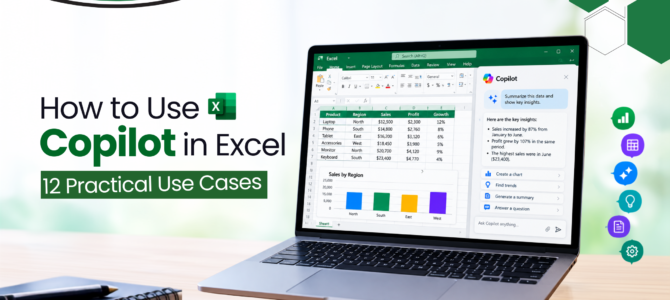
Microsoft Copilot in Excel changes how people work with spreadsheets. Instead of writing formulas from scratch or manually formatting rows of data, users can now type a plain instruction and let Copilot handle the calculation, chart, or cleanup task in seconds. This guide explains how to use Copilot in Excel step by step, along with twelve practical Copilot in Excel use cases built around real microsoft Copilot excel features that professionals rely on daily, from basic data formatting to advanced scenario modelling.
What Do You Need to Use Copilot in Excel?
A common question professionals ask is why Copilot is not showing in Excel. Before troubleshooting anything else, it helps to confirm the three copilots in excel requirements that need to be in place first.
Copilot in Excel is only available with a Microsoft 365 Copilot add-on licence. A standard Microsoft 365 subscription without this add-on will not display the Copilot button in the ribbon, no matter how the file is set up.
The file also needs to be saved to OneDrive or SharePoint. Copilot does not work on files stored only on a local drive, since it needs a cloud connection to read and process the data securely.
Finally, AutoSave needs to be switched on. This keeps the file continuously synced while Copilot reads and updates it, which prevents version conflicts between the desktop app and the cloud copy.
1. How to Turn Your Data into an Excel Table
Most spreadsheets start out messy: headers that are not quite consistent, rows added over time, and columns that were never properly labelled. Copilot cannot work reliably with data in this state, which is why this is the first and most important use case to understand.
Once a dataset is selected and converted into a Table using Ctrl + T, Copilot recognises column headers, data types, and row boundaries automatically. This single step is what separates a smooth Copilot experience from one full of errors. A user simply needs to select the range, apply the table format, and every prompt that follows becomes noticeably more accurate.
Before using AI tools like Copilot, having a strong foundation in core spreadsheet management is essential. If you want to build this foundation hands-on, a structured WSQ Microsoft Excel – Basic Level Course in Singapore covers table structuring and other fundamentals in detail.
2. How to Clean Messy Excel Data with Copilot
Extra spaces, duplicate rows, and inconsistent capitalisation are some of the most common problems in shared spreadsheets, especially files that multiple people have edited over months. Cleaning this manually with TRIM or CLEAN formulas takes time and is easy to get wrong.
This is one of the clearest examples of how to clean data using Copilot in Excel without touching a single formula. A simple prompt such as “remove duplicate rows and trim extra spaces in this table" identifies the affected cells and applies the fix directly, leaving the rest of the dataset untouched.
3. How to Sort and Filter Excel Data Using Natural Language
Multi-column filtering in Excel usually means clicking through several dropdown menus one at a time, then repeating the process every time the criteria change. For anyone working with large datasets daily, this adds up to real lost time.
With Copilot, a prompt like “show only rows where region is East and sales are above 50,000" filters the table instantly, without needing to know where each filter option is hidden in the ribbon. Multiple conditions can be combined in a single sentence, which is far faster than building the same filter manually.
4. How to Highlight Important Data with Conditional Formatting
Highlighting top performers, flagging values below a target, or marking specific text entries usually involves navigating several menus inside the Conditional Formatting tool, and getting the rule syntax right on the first try is not always easy.
Excel Copilot conditional formatting prompts remove that friction. A single sentence such as “highlight the top 10 percent of values in the sales column" applies the formatting immediately, based on the actual data in the table rather than a rule that has to be configured field by field.
How Can Copilot Help with Excel Formulas and Analysis?
5. How to Create and Understand Excel Formulas with Copilot
XLOOKUP, INDEX-MATCH, and layered SUMIFS formulas are common sources of confusion, even for people who use Excel regularly. Getting the syntax wrong by one bracket or comma is enough to break the entire formula.
Copilot can write the formula for a described outcome and, just as importantly, explain what each part of it does. This makes it useful both for getting an immediate answer and for understanding the logic well enough to adjust it later without help.
6. How to Add Calculated Columns Without Writing Formulas Manually
Whether the requirement is a simple percentage calculation, a running total, or a text manipulation task like combining first and last names, building a new column usually means writing and testing a formula manually first.
Copilot can add a calculated column directly from a prompt describing the desired output, such as “add a column showing each product's revenue as a percentage of total sales." The formula is generated and applied in one step, saving the trial-and-error part of the process.
7. How to Create Excel Charts with Copilot
Large datasets often contain patterns that are not obvious from scrolling through rows: a region quietly underperforming, a product category trending upward, or an outlier that skews the whole average.
Asking Copilot to summarise trends, flag outliers, or highlight key performance figures brings this information into a summary panel without building a separate report from scratch. This is particularly useful before a meeting, when there is no time to manually dig through hundreds of rows.
8. One-Click Chart Generation
Bar charts, trend lines, and comparison visuals communicate data far better than a table of numbers, but building them manually means selecting the right range, choosing a chart type, and adjusting formatting until it looks presentable.
A prompt such as “create a bar chart comparing monthly sales by region" generates the chart on a new sheet, already formatted and ready for review. This is one of the fastest microsoft copilot excel features for anyone who regularly prepares reports for stakeholders.
9. Building Pivot Tables via Prompts
Pivot tables are one of the most powerful tools in Excel, but the drag-and-drop field arrangement intimidates many users, especially when the source data has dozens of columns to choose from.
Knowing how to create a pivot table with Copilot in Excel removes that barrier. A prompt describing the required rows, columns, and values lets Copilot construct the pivot table directly, without manually placing a single field.
10. Data Cross-Referencing and Comparison
Comparing two columns, or two entirely separate datasets, to find mismatches is typically a manual and error-prone task, often done by eye or with a fragile helper formula. Copilot can identify missing values or discrepancies between datasets from a single descriptive prompt, such as “compare these two customer lists and show which entries appear in one but not the other." This turns a tedious manual check into a task that takes seconds.
What Can Copilot Do with Advanced Excel Tasks?
11. How to Extract Text and Patterns from Excel Data
Extracting URLs, email addresses, or specific substrings from unstructured text columns usually requires regex-style formulas that are difficult to write and even harder to debug when they fail silently.
Copilot can generate a logic column that performs this extraction based on a plain description of the pattern, such as “extract the domain name from each email address in this column." The result is a working formula without needing to understand regex syntax at all.
12. How to Build Complex Formulas and Test What-If Scenarios
Multi-condition IF-AND-OR rules and scenario-based forecasting are where Copilot shows its most advanced capability and where manual formula-building tends to break down the most.
Describing a business rule in plain language, such as “flag this order as high priority if value exceeds 10,000 and region is East," lets Copilot build the nested logic automatically. The same approach works for what-if scenarios, where changing one assumption needs to ripple through several dependent calculations at once.
How to Write Better Prompts for Copilot in Excel
The quality of the result depends heavily on how the prompt is written. A vague instruction like “fix this data" gives Copilot very little to work with, and the output often reflects that.
A stronger prompt includes four elements: the goal, the context, the source data range, and the desired output format. For example, “using the Sales table, calculate total revenue by region and format the result as a bar chart" gives Copilot everything needed to complete the task correctly on the first attempt. Keeping a personal excel copilot prompts list of phrasing that has worked well in the past makes every future request faster to write.
For large datasets running into thousands of rows, Copilot generally performs well, though very large files may take a few seconds longer to process. Keeping the table structured, removing unnecessary blank columns, and avoiding merged cells all help maintain consistent speed.
Does Copilot in Excel Change or Delete Your Original Data?
Copilot is built to avoid destructive changes. When a formula or transformation is generated, it is typically shown as a preview first or added as a new column or new sheet rather than replacing existing data directly. This gives users a chance to review the output before accepting it.
If Copilot responds with a message such as “I can't help with that," the cause is usually one of a few common issues: merged cells, blank columns within the data range, encrypted files, or a selection that has not been converted into a Table. Resolving these formatting issues typically clears the error.
What Can Copilot in Excel Actually Help You Do?
Copilot speeds up repetitive Excel tasks considerably, from cleaning messy data to generating pivot tables and forecasts within seconds. That said, knowing when and how to apply the right spreadsheet logic remains a core workplace skill on its own. Exploring a comprehensive Microsoft Excel course in Singapore can help professionals combine classic formula knowledge with modern AI-assisted workflows, building a skill set that holds up regardless of which tools evolve next.
 +65 8421 2824
 info@exceltraining.com.sg


 Chat With Us